 Author:


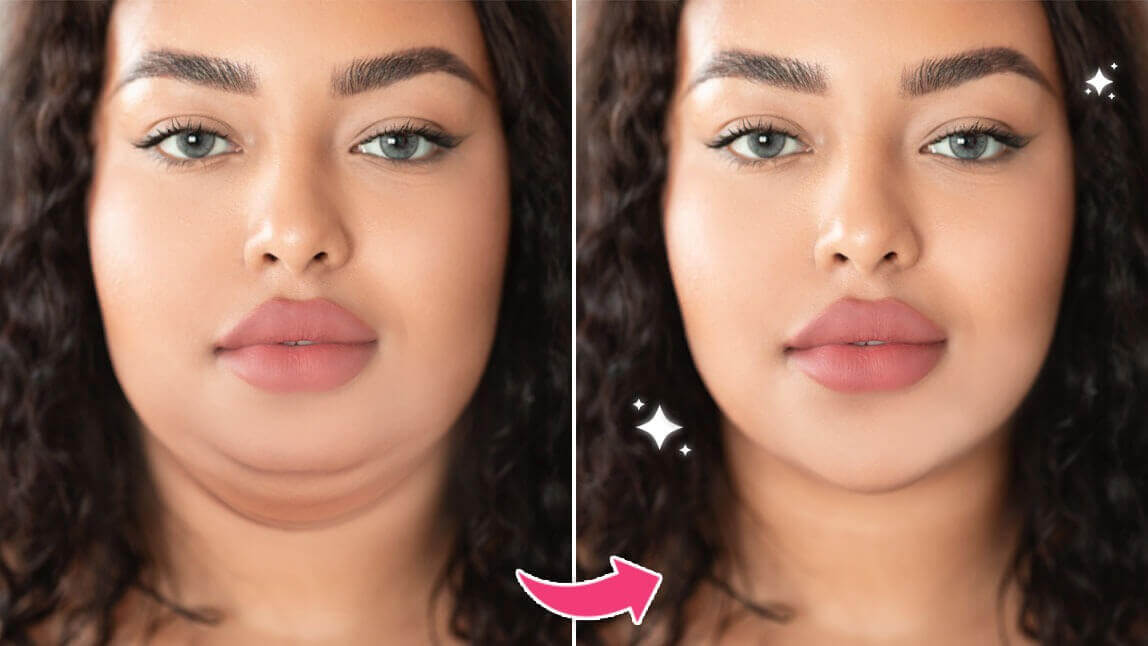
Eye bags can take the shine out of your perfect selfie, but don’t worry—there’s an easy fix! With the best eye bag remover apps, you can effortlessly get rid of under-eye bags in photos using advanced AI technology. These apps not only smooth out tired eyes but also enhance your overall look while keeping it natural.
Read on to explore the 8 best apps for seamless eye bag removal and learn step-by-step how to achieve refreshed and flawless photos.
8 Best Eye Bag Removal Apps to Get Rid of Eye Bags
Struggling with under-eye bags in your photos? These 8 eye bag remover apps use AI to smooth and brighten your look effortlessly for flawless results:
YouCam Makeup: Best App to Get Rid of Eye Bags
Shared Materials by Strapi
*Adjust the size of images ONLY. Please go to Strapi to edit the materials info.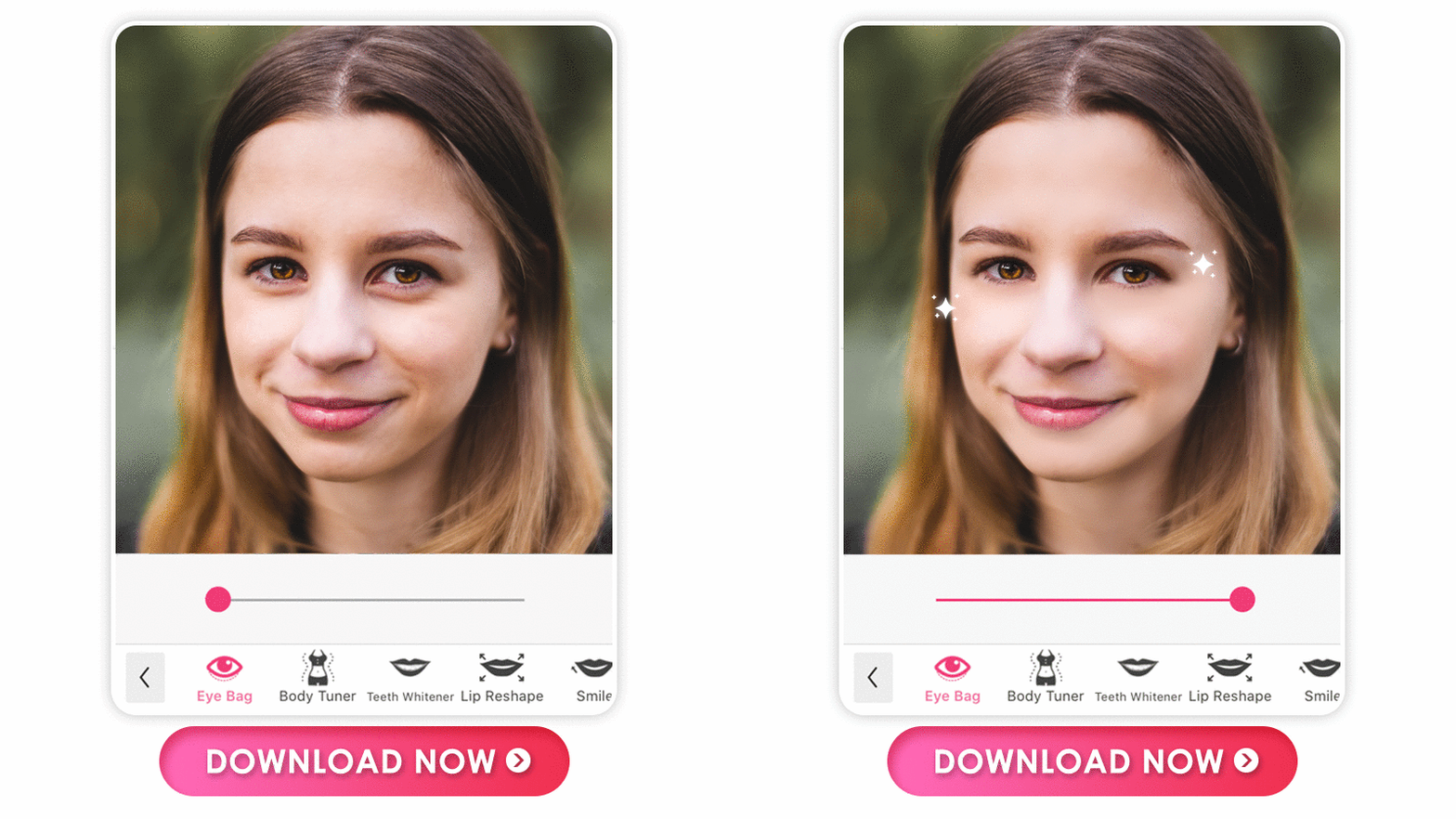
Available for: iOS / Android
Rating: 4.8 / 4.5
YouCam Makeup is the top eye bag remover app for seamless photo retouching. Its AI technology auto-detects eye bag areas, letting you remove them effortlessly with a slider for natural results. You can also use the manual Removal feature to smooth skin for a flawless finish.
Shared Materials by Strapi
*Adjust the size of images ONLY. Please go to Strapi to edit the materials info.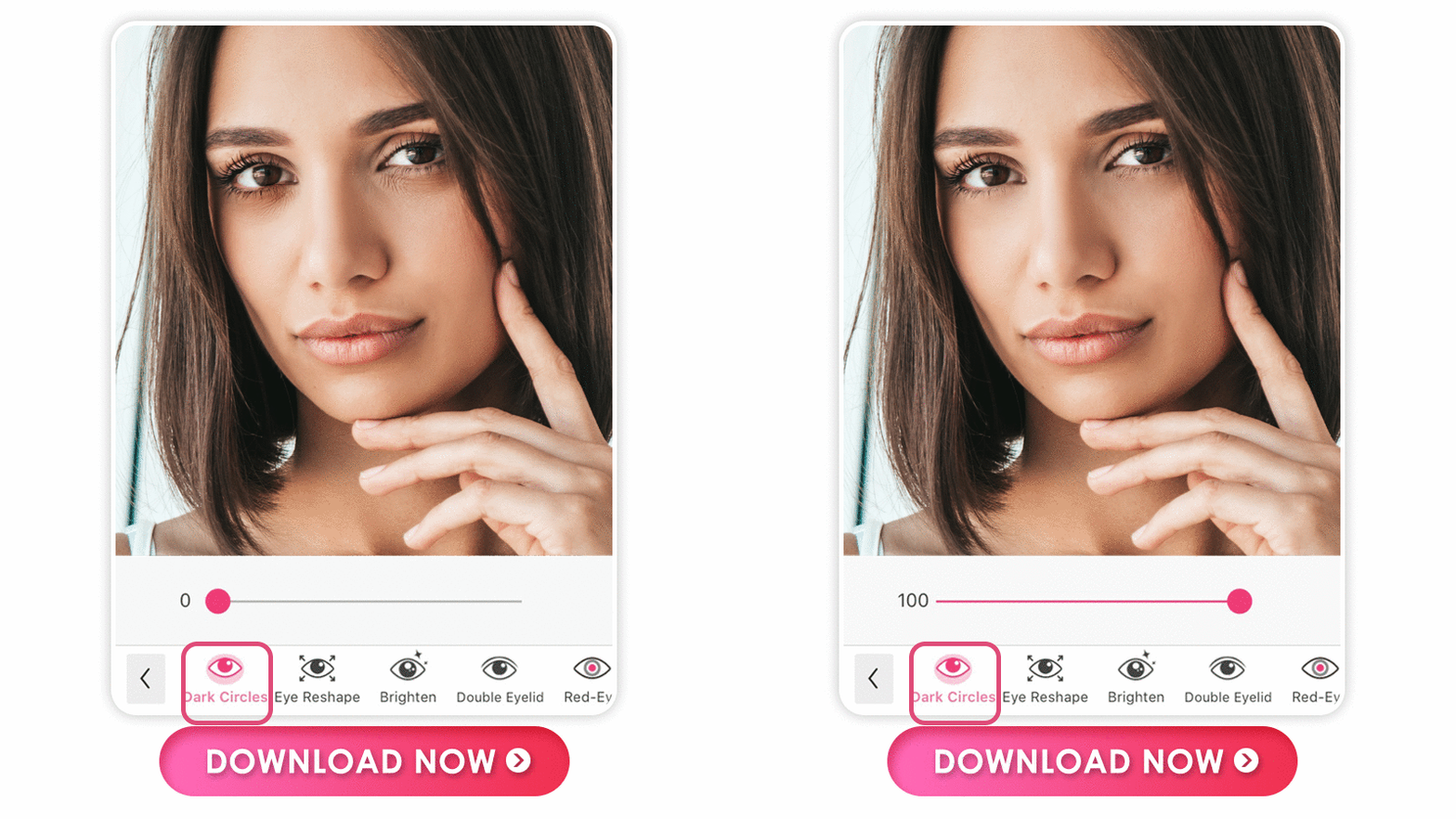
The photo editng app can also be used to remove dark circles, enabling you to brighten up the under-eyes area in the most thorough and natural way.
With over 25 face-editing features, like wrinkles, face shapers, and blemish removal, YouCam Makeup is our top choice for removing eye bags in your photos.
➤ How to Remove Eye Bags on Photos Naturally
Facetune

Available: iOS / Android
Rating: 4.4 / 4.6
Facetune 2 features an Eye Bag feature that can quickly help you remove under-eye bags easily with a slide bar. However, the eye bag removal feature is only for VIP Exclusive subscription, so it will require a paid plan to use.
It also allows you to patch blurry spots in your pictures (VIP Exclusive subscription required). Facetune 2 allows users to add makeup, reshape objects and change their hair color with just a few taps.
Airbrush

Available for: iOS / Android
Rating: 4.9 / 4.4
While Airbrush doesn’t have a specific tool for removing eye bags, the face-shaping app in the Sculpt feature requires a paid subscription that you can use to remove or change unwanted facial features in your pictures.
The app does have tools for removing acne, adding makeup, and whitening teeth. It also features tools to resize or reshape objects in your photos, but this feature also requires a paid subscription.
BeautyPlus

Available: iOS / Android
Rating: 4.8 / 4.5
While BeautyPlus do not have a specific feature for eye bags, the Dark Circle removal feature under Retouch can help users to achieve the result of clearing out under the eye area.
By removing dark circles under the eyes automatically or manually, the BeautyPlus app can help brighten up the under-eyes area and get rid of the eye bags at the same time.
PicsArt

Available: iOS / Android
Rating: 4.7 / 4.1
PicsArt is one of the most popular photo editor apps on the market, offering aesthetic collages and a platform for photo editing creators. Now it also had some face retouch features, like eye bag removal, which can help users get rid of eye bags automatically or manually.
However, the eye bag feature in the PicsArt app is for premium users only, so you must be a paid member to apply.
Meitu

Available for: iOS / Android
Rating: 4.8 / 4.4
With the Meitu app, users can remove eye bags in photos with the Plumpness adjustment tool under the Edit section. Simply enter the photo edit feature room and tap the under-eye option to remove puffiness under the eyes.
This app also has a feature for adding frames. Use the eraser tool to remove items from your background. Add makeup or whiten your teeth with aesthetic tools.
Snapseed

Available: iOS / Android
Rating: 3.6 / 4.4
Snapseed offers the user lots of flexibility with its editing tools. The most helpful feature in the app might be the ability to undo and redo edits you make to your photos.
The UI is a bit clunky and seems geared more toward art photography and people who have experience with heftier, more specialized editing software like Photoshop.
TouchRetouch
Available: iOS / Android
Rating: 4.7 / 4.5
TouchRetouch is best known as an object-removal app, but its Healing Brush and Clone Stamp tools are also widely used by real users for softening under-eye puffiness and dark circles by hand. On the App Store, the app holds a 4.7-star rating from more than 58,000 ratings, with its own listing highlighting that it can "remove pimples, blemishes, and acne marks" and "soften wrinkles and reduce under-eye bags."
One honest limitation worth noting from real user feedback: since it is a mobile touch-up tool and "not professional desktop software," it can’t fix everything the way a full desktop editor could — but for a quick manual touch-up on eye bags, most users find it effective.
How to Remove Eye Bags from Photos on iPhone and Android
Removing eye bags in photos is easier than you think, no matter your device. You just need the YouCam Makeup app to follow these few short steps.
- Step 1. Download the Best Eye Bag Removal Photo Editor
- Step 2. Upload Your Photo
- Step 3. Remove Eye Bags in the Photo
- Step 4. Remove Dark Circles in the Photo
- Step 5. Save the Photo
Download the Best Eye Bag Remover App
To remove bags under the eyes in photos, start by downloading the best eye bag removal photo editor app, YouCam Makeup, which is available for free on iOS and Android.
Shared Materials by Strapi
*Adjust the size of images ONLY. Please go to Strapi to edit the materials info.
Upload Your Photo

Remove Eye Bags from the Photo With a Slide Bar

Go to Retouch and navigate to the Eye section. Scroll to the right and tap on Eye Bag. The AI technology will automatically detect and remove eye bags, and you can fine-tune the results with the slide bar.
Remove Dark Circles from the Photo With a Slide Bar

Perfect your look by removing any darkness under your eyes by selecting Dark Circle in the Eye section. The app will automatically correct the color around your eyes, and you can adjust it with the slide bar.
Save the Photo
The last thing to do is save the photo and share it with your followers or the YouCam Makeup community.
Download the Best Eye Bag Removal App to Get Rid of Under Eye Bags
Flawless selfies are just a tap away with the best eye bag remover apps like YouCam Makeup. Effortlessly get rid of under-eye bags while keeping your photos natural and polished.
Whether you prefer quick automatic edits or manual adjustments, these tools help you look your best. Try them today for picture-perfect confidence!
Shared Materials by Strapi
*Adjust the size of images ONLY. Please go to Strapi to edit the materials info.
More Face Retouch Tips
- How to Remove Dark Circles from Photos
- How to Remove Eye Bags from Photos
- How to Remove Wrinkles From Photos
- How to Whiten Teeth in Photos