 Author:


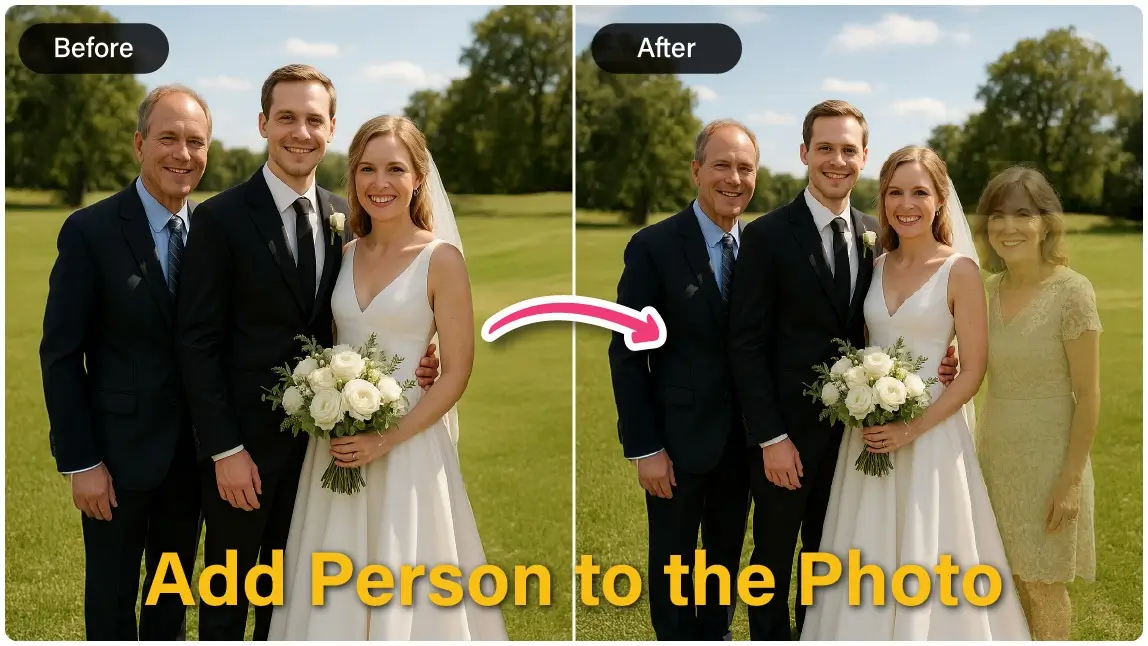
As the saying goes, a picture is worth a thousand words. Photos can instantly transport us back to meaningful moments—especially those shared with loved ones who are no longer with us.
For many people, creating a deceased loved photo is a meaningful way to honor memories, heal emotionally, and feel close to someone they’ve lost. Whether it’s for a memorial, holiday, or personal keepsake, modern photo editing tools now make it possible to add a deceased loved one to a photo for free—no professional skills required.
In this guide, you’ll learn how to use YouCam Perfect, a free photo editing app, to create respectful and natural-looking memorial photos step by step.
Why Do People Add Deceased Loved Ones to Photos?
Losing someone close is never easy—and many people never had the chance to take certain photos together. Deceased photo editing offers a way to fill those emotional gaps and preserve memories visually.

Common Reasons Include:
- Emotional Healing: Seeing a loved one placed gently into a new photo can bring comfort and closure
- Memorial & Tribute Use: Often created for funerals, anniversaries, birthdays, Mother’s Day, or holidays
- Family Remembrance: These photos are frequently shared among family members as cherished keepsakes

How to Add Deceased Loved One to a Photo for Free
One of the easiest ways to add deceased loved ones to photo free online is with the YouCam Perfect app. Follow these steps to create a touching tribute:
Step 1: Download YouCam Perfect

Available for free on IOS and Android, Download and open the YouCam Perfect app and choose the photo you want to include your loved one in. This will be your main photo.
Step 2: Add the Deceased Loved One’s Photo

- Tap Add Photo to import the image of your loved one
- Use the Cutout tool to remove the background for a clean, realistic result
Step 3: Adjust Transparency & Blending

To give a gentler, heartfelt effect, reduce the opacity or use blending features. This helps the added image feel naturally part of the scene.
Step 4: Final Touches

Make small adjustments like positioning, brightness, or contrast to unify the image. Save your photo when you are satisfied with the result.
Add Deceased Loved Ones to Photo with AI Agent
With AI Agent in YouCam Perfect, you can add a deceased loved one to your photo in just a few taps. The AI automatically handles cutout, lighting, and blending—so the final result looks natural, respectful, and emotionally authentic.Follow these simple steps:
- Open YouCam Perfect and select AI Agent

2. Upload your main photo and the photo of your deceased loved one
3. Enter a simple prompt, such as:
- “Add the person from the second photo next to me. Make the lighting natural and realistic.”
- “Place the loved one into the family photo with soft lighting and natural shadows.”
- “Add the person gently into the background as a subtle, respectful presence.”
4. Generate and save your completed memorial photo

The AI Agent intelligently matches lighting, perspective, and environment—helping the added loved one feel naturally part of the moment.
Create New Photos or Videos of Deceased People Using AI Studio

YouCam Perfect's AI Studio offers a tender way to visualize new moments with a deceased loved one by transforming photos into videos or new AI-generated scenes, particularly effective using various templates for a nostalgic, timeless feel.
- Go to AI Tools on launcher & Select AI Studio.
- Select Photo: Upload a clear photo of your deceased loved one.
- Apply Templates: Apply 1-5 templates for a classic, commemorative effect.
- Save: Save and share the final tribute.
Pro Photo Editing Tips for Deceased Loved Photos
- Apply filters to match tones between the two images and make the whole photo more cohesive.
- Add meaningful texts such as names, dates, or quotes to further customize your edit.
- Save in high resolution to preserve the photo and this new memory clearly.
Other Creative Commemorating Ideas
YouCam Perfect also offers additional features to help you create powerful, heartfelt images:
Try AI Kiss & Hug Filters
These AI tools make it look like you’re hugging or kissing the person in the photo. It’s a tender way to reconnect visually.
Image to Video
Turn your image into a short video using this feature. You can animate two images to show a hug or gentle moment, which is perfect for sharing on social media or at memorials.
Photo Blending

Use the Photo Blender tool (Add Photo > Blender > Adjust Opacity) to smoothly combine two images. This works especially well for dreamlike or symbolic photos.
Add Angel Wings with ‘AI Replace’

Add Deceased Loved One to Photos Free with YouCam Perfect
Recreating moments with loved ones we’ve lost can be a powerful part of healing. With YouCam Perfect, creating a respectful and meaningful deceased loved photo is simple, free, and accessible to everyone.
Whether you’re making a memorial image or a private keepsake, these photo edits help preserve memories with love and care.
✨ Download YouCam Perfect today and explore its photo editing tools to honor the people who will always live in your heart.


![Free Object Eraser on iPhone: Remove Objects From Photos [2025 Update]](https://plugins-media.makeupar.com/smb/blog/post/2024-01-31/0d224f70-aff0-4865-82d6-8b6a68e7a289.jpg)