 Author:


Have you ever heard of the story of Leprechaun? On March 17th, Saint Patrick’s Day, you may see lots of events or activities related to this mythical creature. Moreover, some people even attempt to ‘catch’ a Leprechaun using different kinds of traps wishing for good luck and wealth. If you’d like to know more about how to catch a Leprechaun on camera, find out in the article below!
What is a Leprechaun?

Leprechauns are small, old men in Irish folklore who wear green coats and hats while having big, red beards. They are often depicted as shoemakers and are also said to be mischievous, loving to play tricks and pranks.
How to Make Your Leprechaun Caught on Camera with AI
Want to create a magical image of a leprechaun caught on camera? With YouCam Perfect’s AI Agent, you can turn your photos into whimsical, realistic scenes in just a few steps. Here’s how:
1. Select AI Agent
Choose the AI Agent in YouCam Perfect.

Best AI Photo Editor
The Best AI Photo Editor & Selfie Camera.
Remove objects, apply filters & more.
2. Upload Photo
Upload the base image where you want your leprechaun to appear.

3. Enter Your Prompt
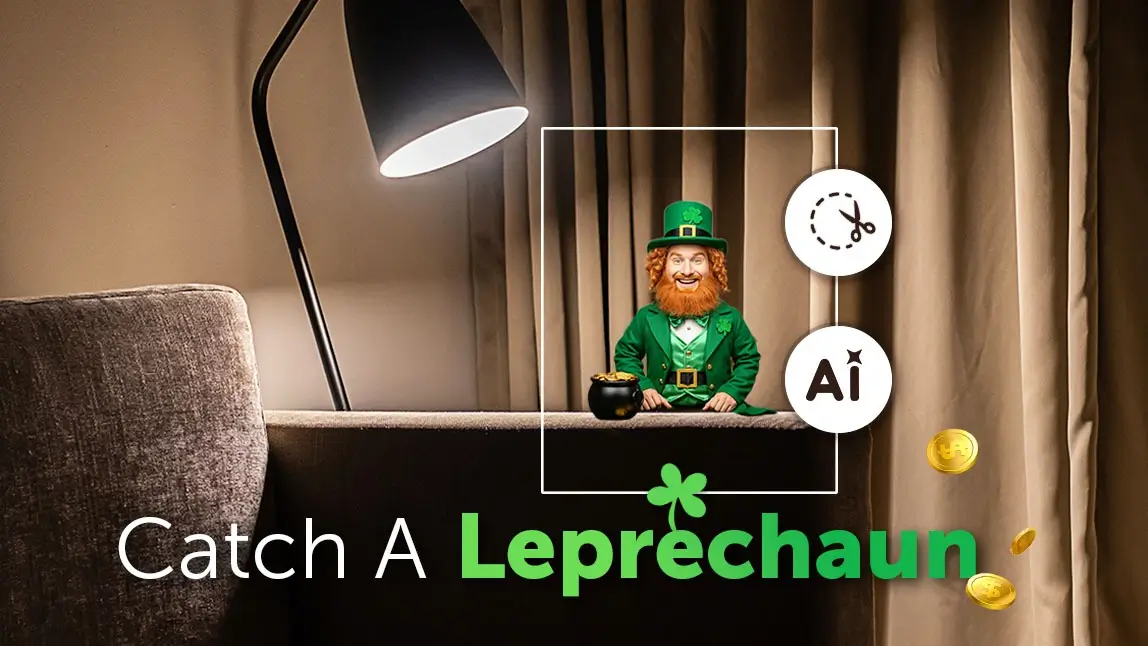
Type: "Add a leprechaun sitting on the corner of the furniture like a tiny house guest. Match the lighting and perspective. Keep everything else unchanged."
This ensures your leprechaun caught on camera looks natural and blends seamlessly with the scene.
4. Generate and Save
Tap “Generate,” review the result, and save the final image once satisfied.

How to Catch a Leprechaun on Camera?
Leprechauns are also famous for their love of gold. Legends say that a Leprechaun will grant you three wishes or a pot of gold to plead for freedom if you actually catch them. But how can we ever catch a Leprechaun? Here are the steps to ‘catch a Leprechaun’ on camera using the best Leprechaun Caught on Camera App, YouCam Perfect!

Step 1: Download the Best App to Catch a Leprechaun
You can get the best Leprechaun Caught on Camera app on Google Play Store or App Store for free.
Best AI Photo Editor
The Best AI Photo Editor & Selfie Camera.
Remove objects, apply filters & more.
Step 2: Upload A Photo of Any Place
Go to Photo Edit' and choose a photo of a park, your room, or even a forest! Select one of your photos and start editing your "Leprechaun Caught on Camera" photo.
Step 3: Add Leprechaun to Photo

Read More: Silhouette Maker: How To Turn a Photo Into Silhouette for Free
Step 4: Adjust the Parameters to Make Photo More Realistic

Bonus: AI Replace

- Step 1. Upload a photo of a place.
- Step 2. Tap AI Replace in the toolbar.
- Step 3. Type in your prompt, such as ‘back view of a Leprechaun’, and click ‘Replace’.
- Step 4. Wait for the Leprechaun Camera App and save the result!
Step 5: Save and Share!
Tap ‘Save’ to save your edited catch-a-Leprechaun photo to your camera roll. Don’t forget to share it on your social media, and try to ‘catch a Leprechaun’ in other places!
How to Add Leprechaun Footprints?
For kids, you may want to add Leprechaun footprints into your photos to show they came by!

- Upload a Photo: Open the Leprechaun Camera App and find ‘Photo Edit.’ Select one of your photos and start editing. Photos of backgrounds like the living room, backyard, or sidewalk work best!
- Add Leprechaun footprints: In the toolbar below, scroll to 'Add Photo' and insert a picture of Leprechaun footprints. If you can't find any good pictures, YouCam Perfect also has stock photos you can use.
- Make Adjustments: Cut out the footprint by clicking on 'Cutout' and tap 'Opacity' to help the footprints better blend in. You can also click 'Adjust' to edit for contrast, brightness, shadow, etc.
- Save and Share: Once you're satisfied with your edited Leprechaun photo, you can save it to your gallery or even send it to friends and family for Saint Patrick’s Day!
Conclusion about Catching a Leprechaun
Leprechauns are a symbol of Saint Patrick’s Day, and it is fun to edit a ‘Leprechaun Caught on Camera’ photo by yourself! Try adding a Leprechaun to your photo with the best Leprechaun Photo App, YouCam Perfect!